Style Guide
A reference of every markdown element and Nextra component available in this template. Use it as a cheat sheet when authoring pages.
Typography
Headings
# Heading 1
## Heading 2
### Heading 3
#### Heading 4
##### Heading 5
###### Heading 6
Headings 2–4 are automatically picked up by the table of contents on the right.
Paragraphs and inline formatting
A regular paragraph supports bold text, italic text, bold italic, strikethrough, inline code, and links to other pages or external URLs .
You can combine them: a bold link or italic code.
Blockquotes
Documentation is a love letter that you write to your future self.
— Damian Conway
Nested blockquotes:
Outer quote.
Inner quote.
Horizontal rule
Lists
Unordered
- First item
- Second item
- Third item
- Nested item
- Another nested item
- Deeply nested
Ordered
- First step
- Second step
- Third step
- Sub-step
- Sub-step
Task list
- Completed task
- Another completed task
- Pending task
- Future task
Tables
| Component | Import from | Purpose |
|---|---|---|
Callout | nextra/components | Highlight a block of information |
Steps | nextra/components | Number sequential instructions |
Tabs | nextra/components | Group alternative content |
Cards | nextra/components | Linkable card grid |
FileTree | nextra/components | Render a folder structure |
Bleed | nextra/components | Extend content past the gutter |
Column alignment:
| Left aligned | Centered | Right aligned |
|---|---|---|
npm | 1.x | ✔️ |
pnpm | 9.x | ✔️ |
yarn | 4.x | ✔️ |
Images
Place images in /public and reference them with a root-relative path. Nextra optimizes them automatically:

For finer control, use the Next.js <Image> component (see CLAUDE.md for details).
Code
Inline code
Use backticks for inline code references like npm install, file names like next.config.mjs, or short snippets.
Fenced code block
const greet = (name) => `Hello, ${name}!`
console.log(greet('world'))
With filename
export const greet = (name: string) => `Hello, ${name}!`Line highlighting
const a = 1
const b = 2 // highlighted
const c = 3
const d = 4 // highlighted
const e = 5 // highlighted
const f = 6 // highlighted
Line numbers
function add(a: number, b: number) {
  return a + b
}

add(2, 3)
Word highlighting
import { useState } from 'react'

function Counter() {
  const [count, setCount] = useState(0)
  return <button onClick={() => setCount(count + 1)}>{count}</button>
}
Diff-style
- const old = 'value'
+ const next = 'value'
Shell
npm install nextra nextra-theme-docsMath (LaTeX)
Inline math: and .
Block math:
Nextra components
Callout (custom)
The template ships a custom <Callout> component registered globally — no import needed.
This is the default callout. Use it for general notes.
Info callout — helpful supplementary information.
Tip callout — a pro tip or “did you know” aside.
Success callout — confirm something is working.
Warning callout — caution the reader.
Error callout — flag a critical problem.
Important callout — highlight non-skippable details (distinct purple styling).
<Callout type="warning">Caution the reader.</Callout>Callout (Nextra built-in)
Nextra’s own callout is available as NextraCallout in this page (imported and aliased to avoid colliding with the custom one above).
import { Callout } from 'nextra/components'

<Callout type="info">Your content here.</Callout>
Steps
Install dependencies
Run npm install to fetch the template’s dependencies.
Configure your content
Edit src/content/_meta.js to control the sidebar order.
Run the dev server
npm run devBuild and deploy
npm run buildTabs
npm
npm install nextra nextra-theme-docsCards
Cards are navigation tiles — title + optional icon + optional arrow. Always use the self-closing form. Children render as an unpadded banner above the title bar (intended for full-bleed images, not description text), so don’t put paragraph content inside a card.
<Cards>
  <Cards.Card title="Overview" href="/" arrow />
  <Cards.Card title="Nextra docs" href="https://nextra.site" arrow />
</Cards>
FileTree
- layout.tsx
- _meta.js
- index.mdx
- styleguide.mdx
- mdx-components.tsx
- next.config.mjs
- package.json
Bleed
<Bleed> extends content past the page gutter — useful for wide diagrams, screenshots, or embedded media.
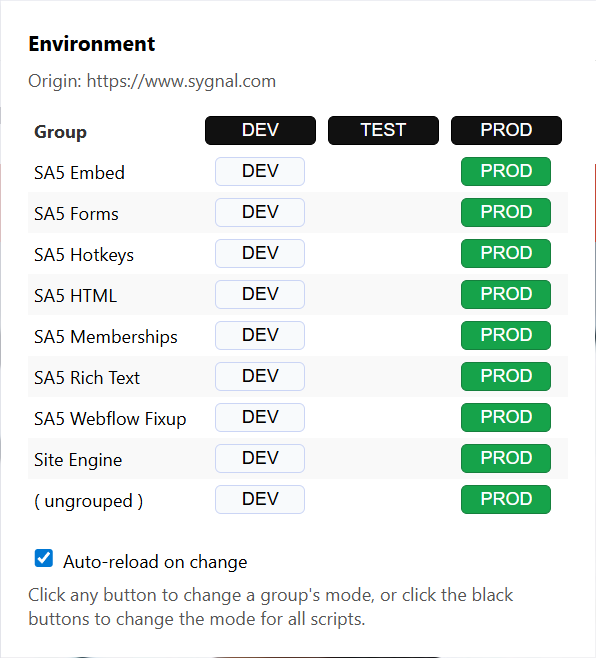
Use <Bleed full> to extend all the way to the viewport edges.
Mermaid diagrams
Fenced code blocks tagged mermaid are rendered as live diagrams.
```mermaid
graph LR
  A[MDX source] --> B[remark-mermaid]
  B --> C[Mermaid component]
  C --> D[Rendered diagram]
```
A sequence diagram:
Images & ImageZoom
All plain markdown images are now click-to-zoom by default — ![]() is wired through <ImageZoom> in src/mdx-components.tsx.
You can also use the component explicitly if you need to pass next/image-specific props:

import { ImageZoom } from 'nextra/components'

<ImageZoom src="/toolbar.png" alt="…" width={1200} height={300} />
YouTube
<YouTube> embeds a privacy-enhanced (youtube-nocookie.com) player at a 16:9 aspect ratio.
<YouTube id="dQw4w9WgXcQ" title="Optional title" />
<YouTube id="..." start={120} />
<YouTube id="..." aspectRatio={[4, 3]} />
Video
<Video> wraps the native HTML5 <video> element with sensible defaults (controls, preload="metadata", playsInline).
<Video src="/clips/intro.mp4" poster="/clips/intro-poster.jpg" />

{/* Multi-format fallback */}
<Video
  src={[
    { src: '/clips/intro.webm', type: 'video/webm' },
    { src: '/clips/intro.mp4',  type: 'video/mp4'  }
  ]}
/>
Drop video files under /public and reference them with root-relative paths, same as images.
Embed
<Embed url="..."> is a one-stop wrapper for arbitrary URLs. Known providers render as a rich iframe; unknown URLs fall back to a simple link card.
Currently routed providers: YouTube, Vimeo, Loom, CodePen, Figma.
Unknown URL → link card fallback:
<Embed url="https://www.youtube.com/watch?v=..." />
<Embed url="https://vimeo.com/123456789" />
<Embed url="https://www.loom.com/share/abc..." />
<Embed url="https://codepen.io/user/pen/xyz..." />
<Embed url="https://www.figma.com/file/abc.../Title" />
Prefer the dedicated <YouTube> / <Video> components when you know the source — they’re slightly more configurable. Use <Embed> when the source could vary or when you want consistent “any-URL-works” behavior in authored content.
Button
<Button> is a styled action button with default and outline variants. It’s a thin wrapper around Headless UI’s button.
'use client'
import { Button } from 'nextra/components'

export function ButtonDemo() {
  return (
    <>
      <Button onClick={() => alert('clicked')}>Default button</Button>
      <Button variant="outline" onClick={() => alert('clicked')}>
        Outline button
      </Button>
    </>
  )
}
Note: event handlers like
onClickare functions and can’t be passed from a server-rendered MDX file directly to a client component. Wrap interactive buttons in a'use client'component (as above) and import that into MDX.
Collapse
<Collapse> is a controlled show/hide region with height + opacity animation. You drive isOpen from your own state.
This content is revealed when the trigger is clicked. The Collapse component animates height and opacity.
- Use it for optional / supplementary detail.
- Use
<details>for SEO-indexable accordions.
'use client'
import { useState } from 'react'
import { Collapse, Button } from 'nextra/components'

export function CollapseDemo() {
  const [isOpen, setIsOpen] = useState(false)
  return (
    <>
      <Button variant="outline" onClick={() => setIsOpen(o => !o)}>
        {isOpen ? 'Hide' : 'Show'}
      </Button>
      <Collapse isOpen={isOpen}>{/* … */}</Collapse>
    </>
  )
}
For collapsible content that should be visible to search engines, prefer the native <details> / <summary> HTML elements.
Popup
<Popup> is a hover-triggered popover. Useful for inline definitions and footnote-style asides.
Hover the underlined term for a definition:
Pagefind
import { Popup } from 'nextra/components'

<Popup>
  <Popup.Button as="span">trigger text</Popup.Button>
  <Popup.Panel>panel content</Popup.Panel>
</Popup>
Select
<Select> is a styled controlled <select>-like dropdown. Most often used for compact in-page filters or option pickers (theme, version, language).
'use client'
import { useState } from 'react'
import { Select } from 'nextra/components'

const options = [
  { id: 'system', name: 'System' },
  { id: 'light',  name: 'Light' },
  { id: 'dark',   name: 'Dark' }
]

const [value, setValue] = useState('system')

<Select
  value={value}
  onChange={setValue}
  options={options}
  selectedOption={<span>Theme: {value}</span>}
/>
Playground
<Playground> compiles a string of MDX in the browser and renders it inline. Useful for live API demos or component examples where you want readers to see source + output side by side without a separate sandbox.
import { Playground } from 'nextra/components'
import { useMDXComponents } from '../mdx-components'

<Playground
  source={`
## Hello from Playground

This MDX is compiled at runtime.
  `}
  components={useMDXComponents()}
  fallback={<p>Loading…</p>}
/>
Note: Playground pulls the MDX compiler into the client bundle on first render, so use sparingly — not on every page.
Banner
<Banner> is a site-wide announcement strip rendered above the navbar. It’s wired in src/app/layout.tsx, not used inline in MDX.
import { Banner, Layout, Navbar, Footer } from 'nextra-theme-docs'

const banner = (
  <Banner storageKey="release-1.0">
    🎉 v1.0 is out — <a href="/release-notes">read the notes</a>
  </Banner>
)

<Layout banner={banner} navbar={<Navbar … />} footer={<Footer …/>} …>
  {children}
</Layout>
storageKey lets the banner remember it’s been dismissed per visitor.
Rich tables (DataTable)
GFM |-syntax tables can hold one line of plain text per cell. When you need multi-paragraph cells, lists, callouts, or other components inside cells, use <DataTable> instead.
| Component | When to use | Notes |
|---|---|---|
| GFM table | Simple comparison rows with one line of plain text per cell. | Pipe-and-dash syntax ( |
<DataTable> | Cells need multiple paragraphs, lists, or embedded components. | Examples of things you can put in a cell:
|
HTML <table> | Only when you need full control of attributes. | Allowed in MDX, but bypasses the house style. |
Column alignment:
| Left | Centered | Right |
|---|---|---|
npm | 1.x | ✔︎ |
pnpm | 9.x | ✔︎ |
<DataTable
  headers={['Column A', 'Column B']}
  widths={['30%', '70%']}
  align={['left', 'right']}
  caption="Optional caption rendered above the table."
>
  <DataTable.Row>
    <DataTable.Cell>Cell content</DataTable.Cell>
    <DataTable.Cell>
      Can contain **markdown**, components, lists — anything MDX allows.
    </DataTable.Cell>
  </DataTable.Row>
</DataTable>
API:
headers={[...]}— optional column headers (omit for headerless tables)align={['left' | 'center' | 'right', ...]}— per-column alignment, applied to both header and body cellswidths={['20%', '160px', 'auto', ...]}— per-column widthcaption={...}— optional caption above the table<DataTable.Row>— wraps a row<DataTable.Cell>— a body cell; supportscolSpan,rowSpan, per-cellalignoverride<DataTable.HeaderCell>— for inline header cells if you don’t use theheadersprop
DataTable is registered globally in src/mdx-components.tsx — no import needed in MDX.
Sidebar grouping (_meta.js)
Long sidebars get unwieldy without section headers. Add a separator with a title between groups:
export default {
  index: { title: 'Overview', theme: { breadcrumb: false } },

  'core': { type: 'separator', title: 'Core' },
  concepts: 'Concepts',
  architecture: 'Architecture',

  'reference': { type: 'separator', title: 'Reference' },
  styleguide: 'Style Guide'
}
The key ('core', 'reference') is arbitrary — only type and title matter. With title: bold, slightly elevated header text. Without title: a plain <hr>. Group headers can appear at any depth (top-level _meta.js or any nested section’s _meta.js).
The custom PageBreadcrumb (in src/components/PageBreadcrumb.tsx) reads the same _meta.js and prepends the active group as the leading crumb when present.
Frontmatter
Each page may declare a title and description in YAML frontmatter. These feed the <title> tag and meta description.
---
title: My Page
description: One-sentence summary used for SEO and previews.
---

# My Page

Content here…
Sidebar configuration (_meta.js)
Control sidebar order, titles, and per-page theme options:
export default {
  index: {
    title: 'Overview',
    theme: { breadcrumb: false }
  },
  styleguide: 'Style Guide'
}